What’s New?
We’ve made keyword management in Google Ads campaigns faster and more flexible:
- Removed the previous 40-keyword limit for both Positive Keywords and Negative Keywords.
- Added a larger text area to make working with multiple keywords easier.
- You can now bulk paste keywordsinstead of adding them one by one.
- Bulk paste supports keywords separated by new lines or commas.
- Duplicate keywords and extra blank spaces are automatically cleaned up.
- Choose the required match typeand add the keywords together.
How It Works:
- Go to Ad Manager → Google Campaign → Ad Group.
- Navigate to the Positive or Negative Keywordssection.
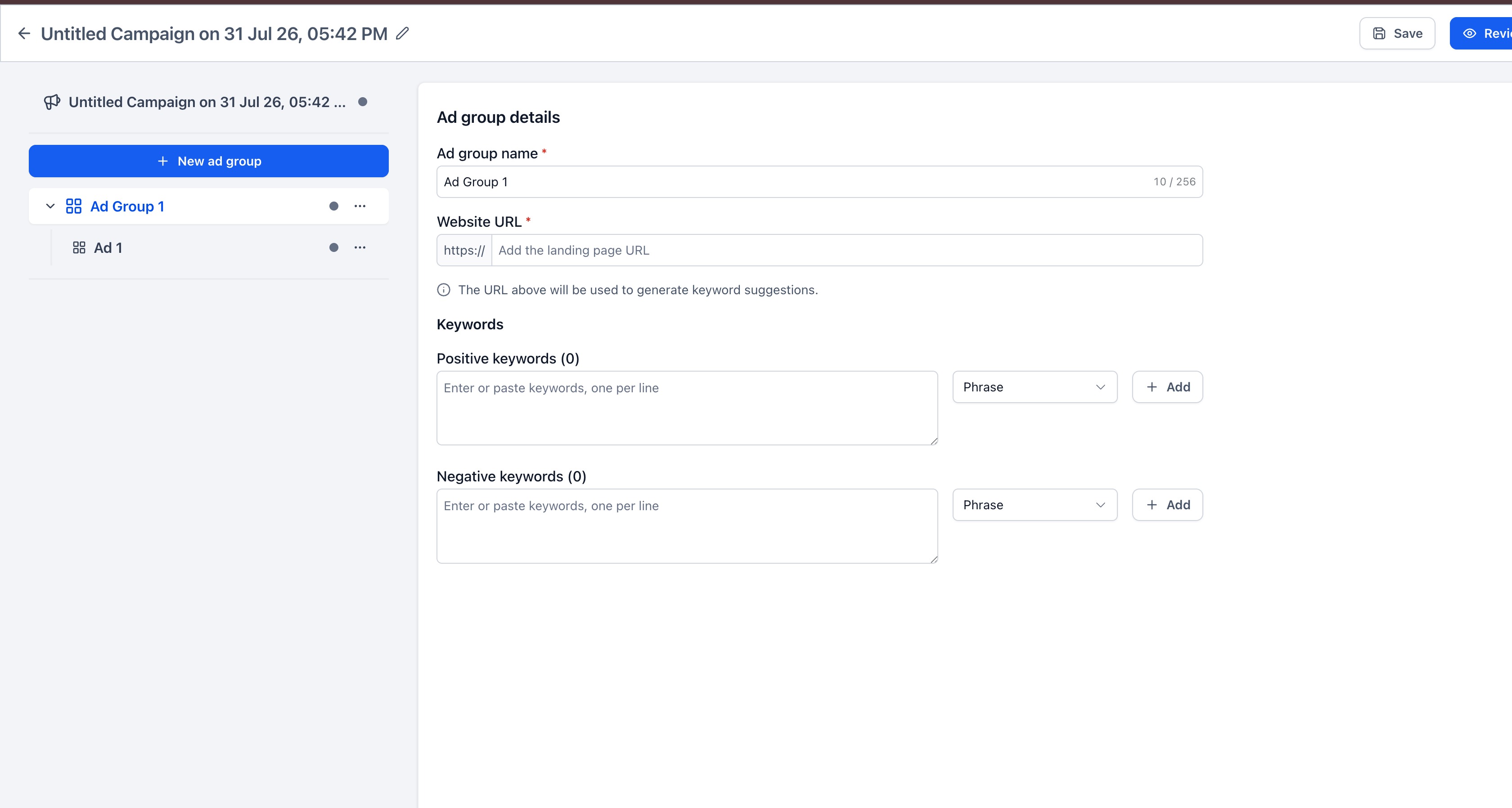
- Type or paste multiple keywords into the keyword field.
- Separate keywords using new lines or commas.
- Select the desired match type and click Add.
Why It Matters:
- Managing large keyword lists is now significantly faster. Advertisers can bring existing keyword lists into the platform in one go, reduce repetitive manual entry, and build more comprehensive Google Search campaigns without being restricted by the previous 40-keyword limit.
Notes:
- Available for both Positive and Negative Keywordsin Google Ads campaigns.
- Duplicate and empty keyword entries are automatically removed during bulk entry.
- Keyword eligibility remains subject to Google Ads requirements.
Was this article helpful?
That’s Great!
Thank you for your feedback
Sorry! We couldn't be helpful
Thank you for your feedback
Feedback sent
We appreciate your effort and will try to fix the article